> For the complete documentation index, see [llms.txt](https://docs.finngen.fi/llms.txt). Markdown versions of documentation pages are available by appending `.md` to page URLs; this page is available as [Markdown](https://docs.finngen.fi/working-in-the-sandbox/running-analyses-in-sandbox/pipelines-tool-instructions/if-your-pipeline-job-fails.md).
# If your pipeline job fails
Pipeline jobs can fail on few of reasons and on different layers of data processing.
### Pipeline job failing during wdl, json or input data evaluation
The before cromwell starts data processing wdl, json and input data is evaluated. Runtime logs (see below) are not produced since the process has not started yet. Pipeline GUI provides failure information from workflow metadata if available.
Above example the path of file in library red bucket is not found as Sandbox alias "LIBRARY\_RED/" is not translated to the correct google cloud bucket "gs\://finngen-production-library-red" equivalent. In the Call & Step there is a path to the stderr file but the file does not exist:
It is possible to inspect pipeline job metadata with command line tool to get additional cues for debugging:
### Pipeline job failing during virtual machine runtime of specific pipeline call
All pipeline call output files will be saved in Sandbox. These folders contain information on call executions that are important in source of debugging or you workflow. The most informative file is `/finngen/pipeline/cromwell/workflows/[workflow_name]/[workflow_ID]`. Your job will be saved as a pipeline job even if it is conducted with [the custom GWAS tools](/working-in-the-sandbox/which-tools-are-available/untitled.md). You can search for a pipeline job from [the pipeline tools](/working-in-the-sandbox/running-analyses-in-sandbox/pipelines-tool-instructions/how-to-use-the-pipelines-area.md) based on the date the custom GWAS was run, or by browsing the RECENTS page in [the custom GWAS tool](broken://pages/-MhYMPpmLjq4WtP_ceMi).
If your pipeline job fails, first read the error report and log file to find out the specific reason for the failure of your pipeline job.
## How to check why the job failed
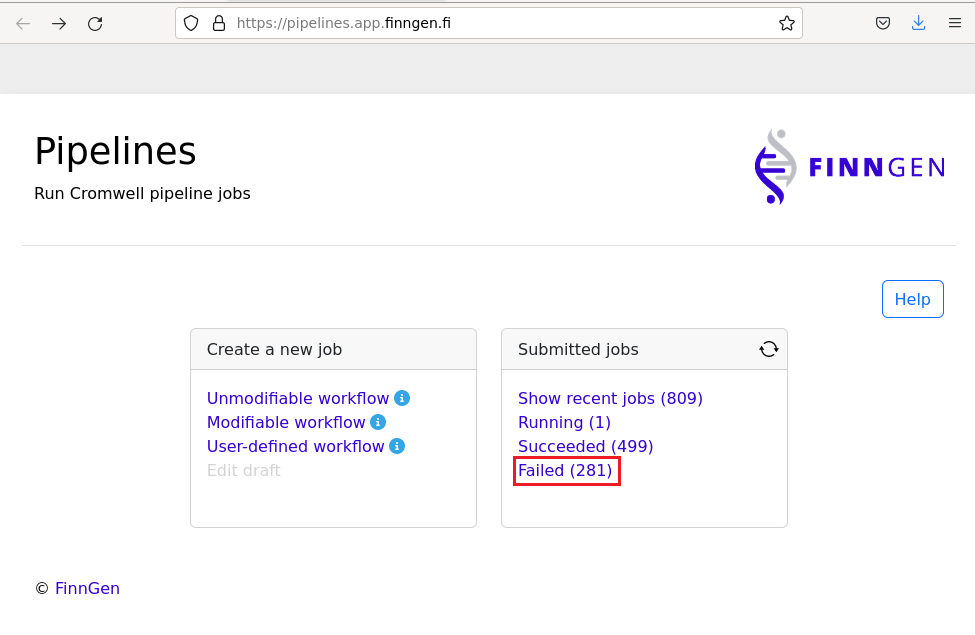
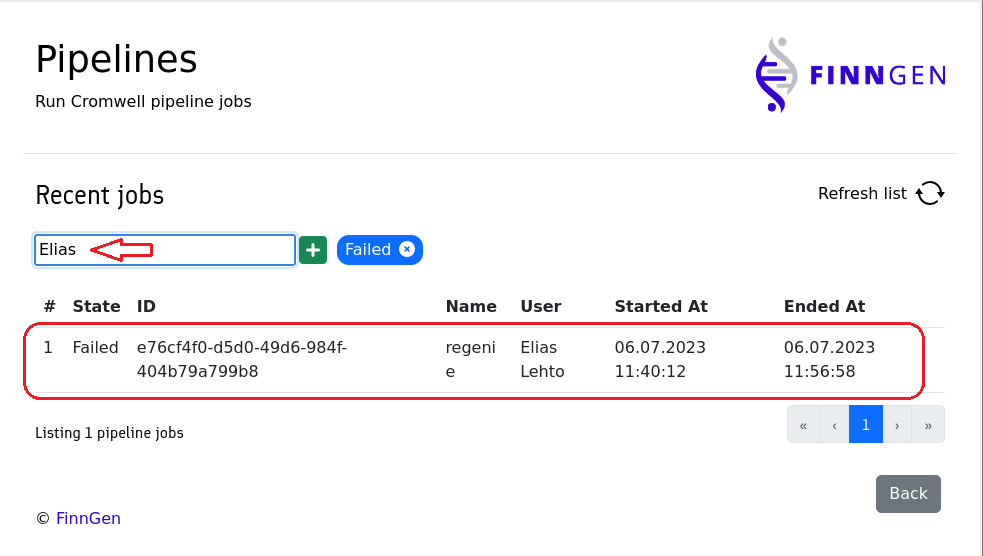
In the **Pipelines** application, go to the **Failed** section.
Search for your own name (or the name of the person who made the pipeline job) and click the pipeline job you want to examine. You can also search for the job ID (see [Tips on how to find a pipeline job ID](/working-in-the-sandbox/running-analyses-in-sandbox/pipelines-tool-instructions/tips-on-how-to-find-a-pipeline-job-id.md)).
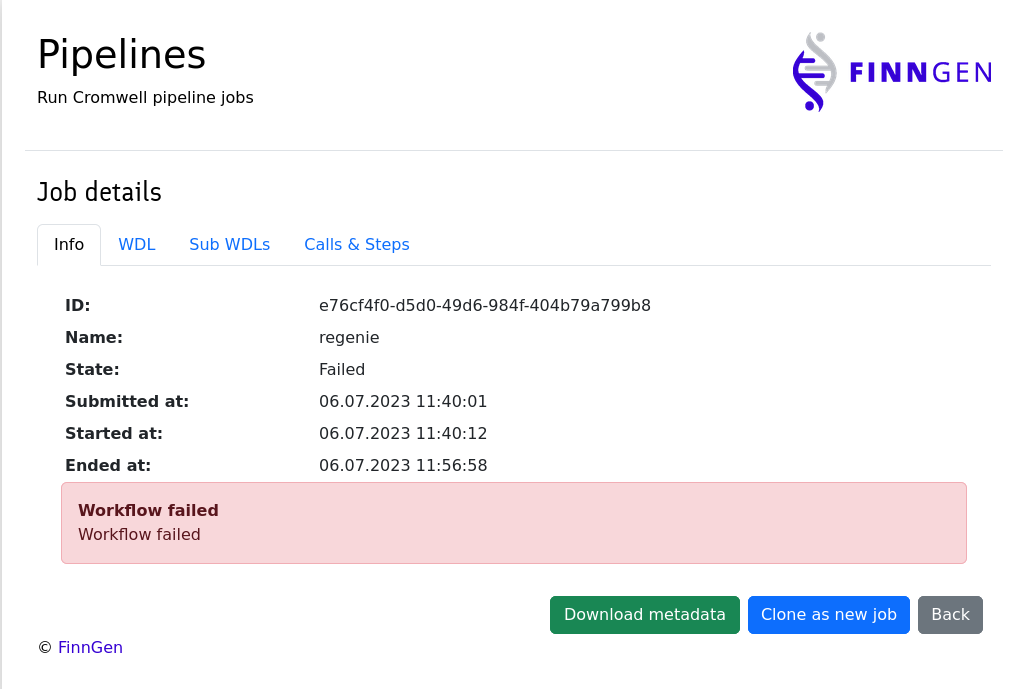
The **Job details** page will open. Here you can again see the pipeline ID, Name, State, Submitting, Starting and Ending date and time, and more information about the error type.
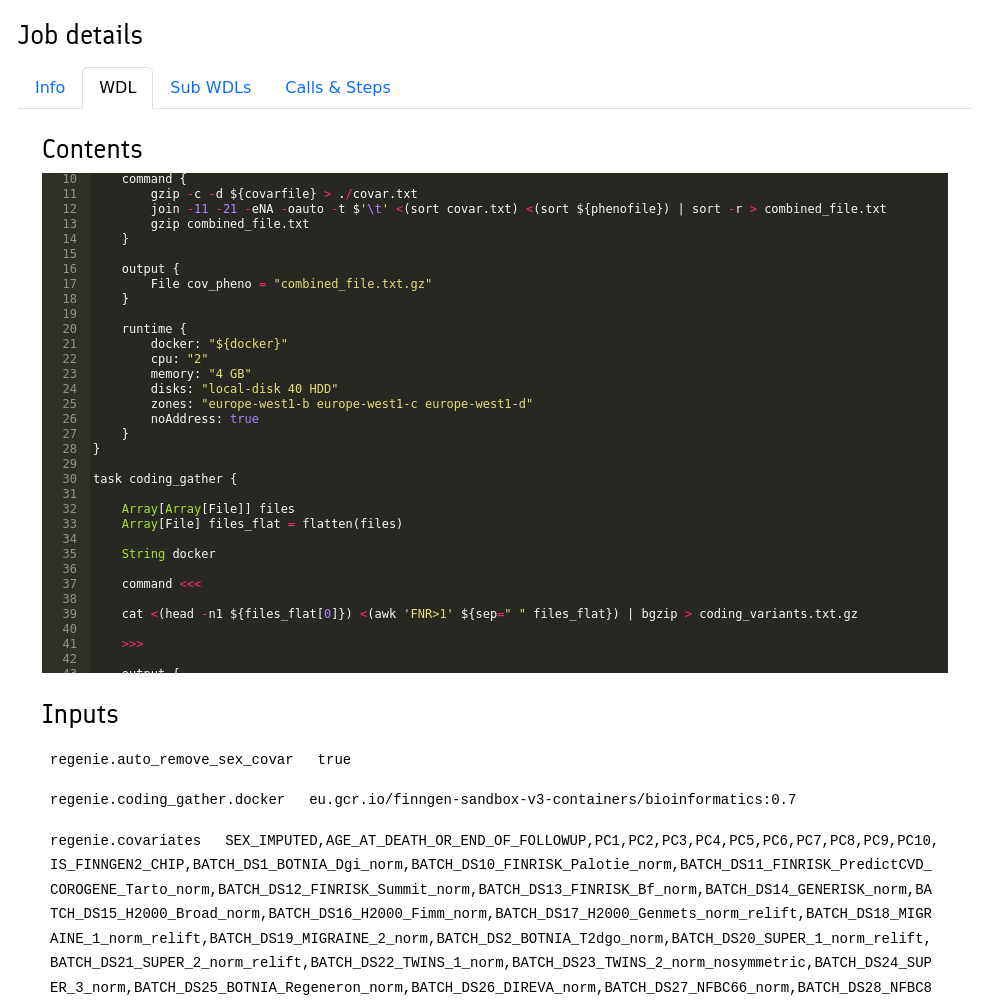
Click over to the WDL tab to see the WDL code, input files, and settings. Ensure that you are viewing the correct run, and that it was generated from the input files you expected.
Next, go back to the Info page and click on **Download metadata**.
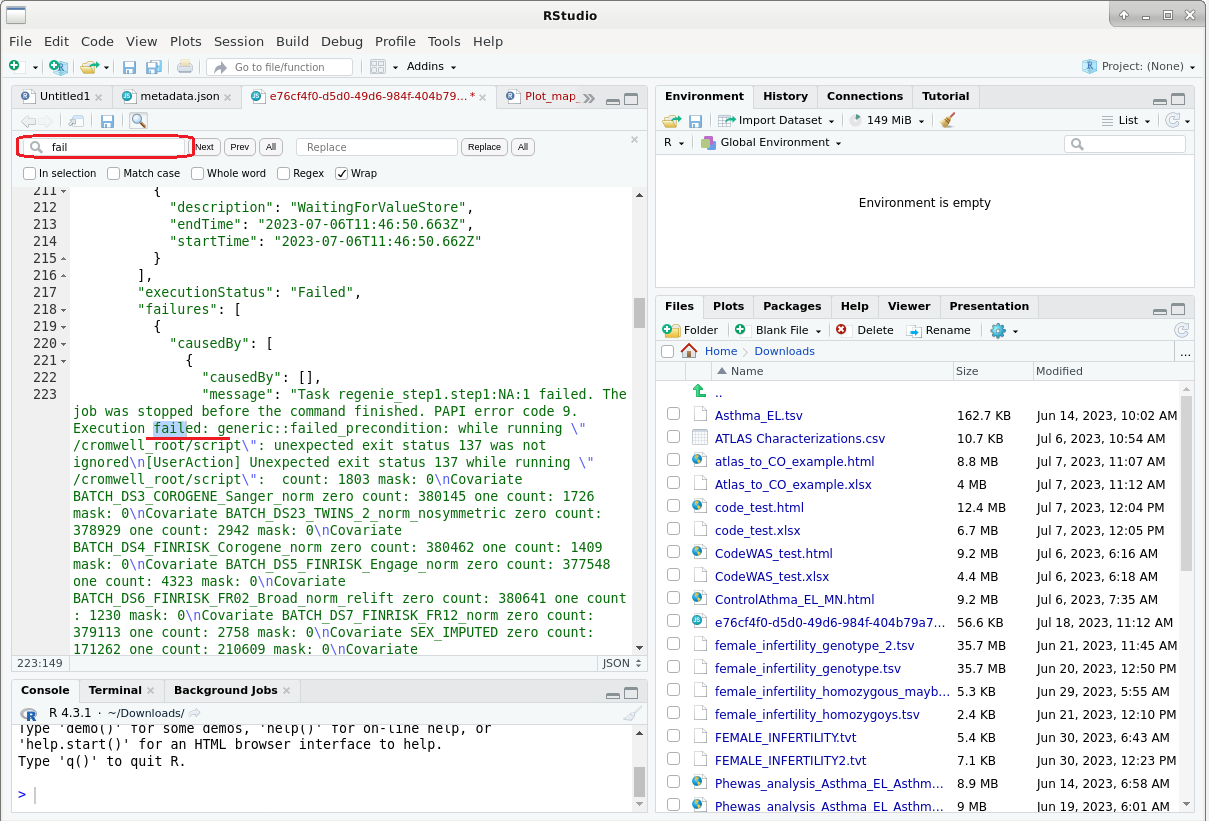
Once the metadata has been downloaded, open the file with RStudio and examine the point(s) of failure. A good way to do this is with Control + F (Windows) or Command + F (Mac) and search for "error" or "fail".
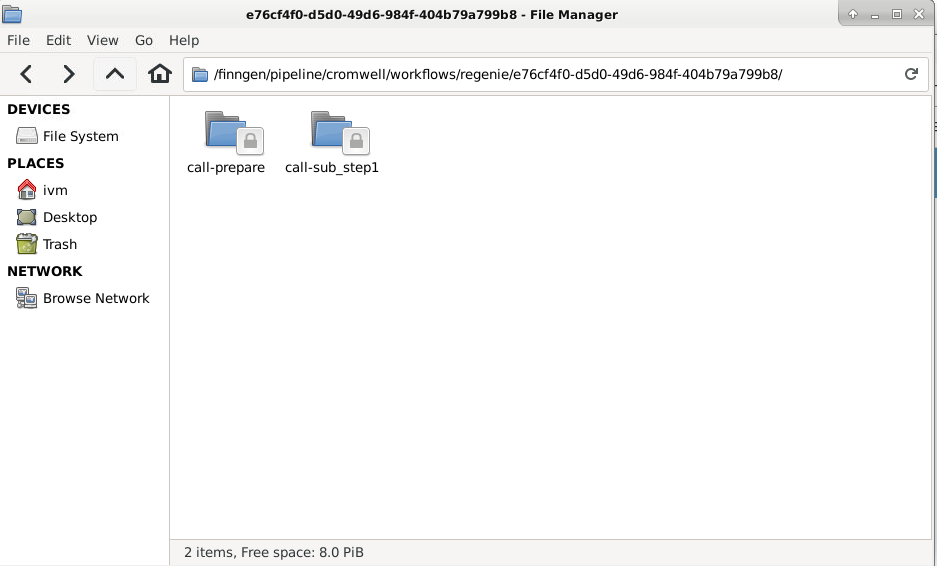
If this method doesn't give enough information about the cause of failure, it's a good idea to check out the `stderr` error file of the pipeline job. It can be found from **File Manager** with the path `/finngen/pipeline/cromwell/workflows/regenie/[your_pipeline_job_ID]`.
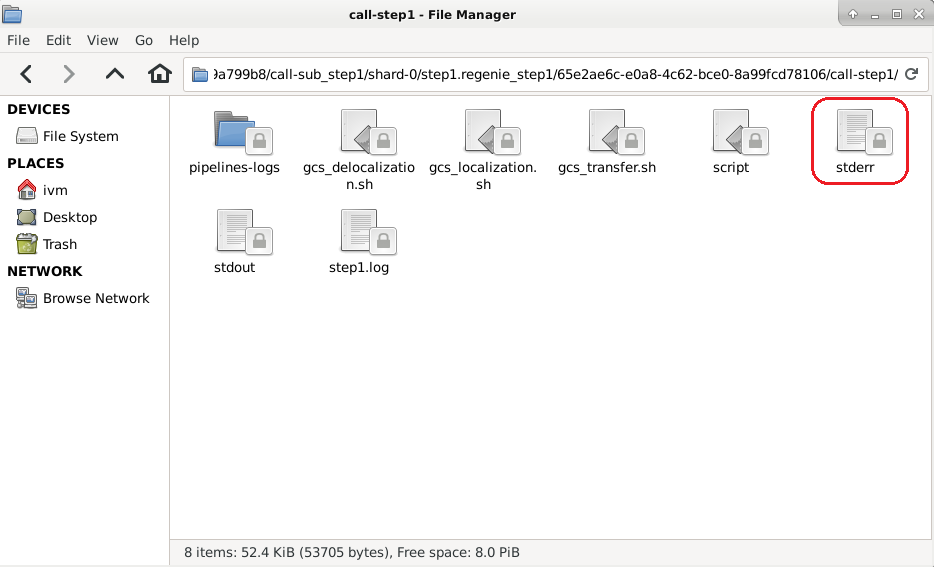
Select `call-sub_step1` and go through the folders in it until you reach the file containing `stderr`. This might require a little searching, but `stderr` usually is found from this file.
After finding `stderr`, open it and try to find out a cause of failure.
## Solution to common errors
### Error: "file not found"
This can happen if:
1. Some of the input files specified in the workflow `.json` file are not at the correct place.\
**Solution:** Fix the paths of the input files in the workflow `.json` file.
2. The input files put in `/finngen/…` were not yet synced.\
**Solution:** Wait until the files are synced. More info here: [Why do I get error 'files missing from /finngen/red/'?](https://github.com/finngen-user-documentation/Draft_of_FG_Analyst_Handbook/blob/master/working-in-the-sandbox/running-analyses-in-sandbox/broken-reference/README.md)
.png?alt=media)
.png?alt=media)
.png?alt=media)
.png?alt=media)