# Cohort Pathways

{% hint style="info" %}
Cohort Pathways in Atlas helps you understand the **sequence of events** in Target Cohorts.
{% endhint %}

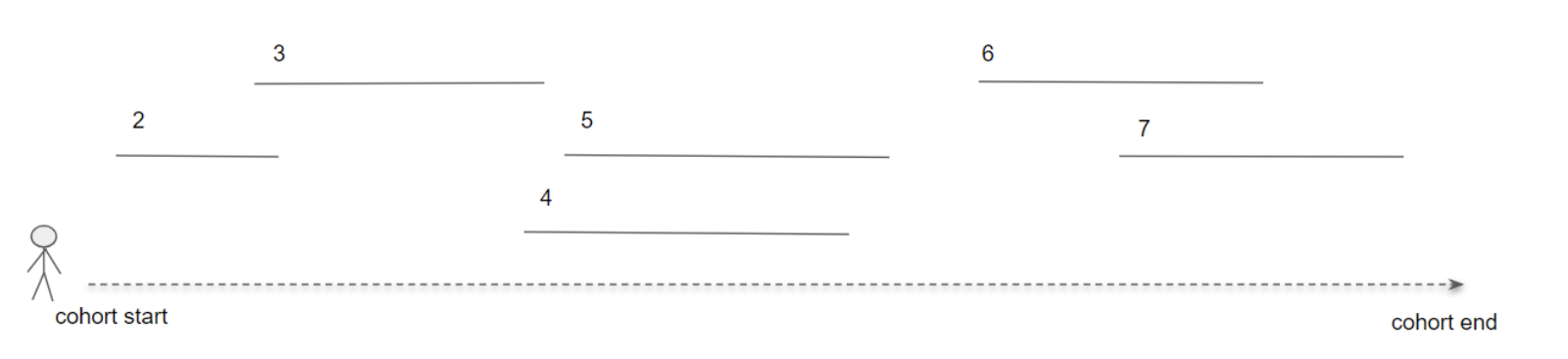
The Cohort Pathways allows you to study the sequence of transitions between Event Cohorts among the people in the Target Cohorts. Events of interest include treatments, procedures, medicines, or comorbidities.

<figure><img src="/files/vszzMSSPc0zfF7VP3CdC" alt=""><figcaption><p>Pathways analysis in the context of a single person</p></figcaption></figure>

{% hint style="info" %}
If you see an interesting Cohort Pathway you can copy and modify it. However, please avoid changing other researchers' Cohort Pathways.
{% endhint %}

### Create a new Cohort Pathway and select Target and Event Cohorts

In this example, we create a new cohort and select:

* A Target Cohort defined by ICD10 asthma codes J45 and J46
* An Event Cohort defined by the use of common asthma medicines

{% hint style="info" %}
Both the Target and Event Cohorts [must be defined](/working-in-the-sandbox/which-tools-are-available/atlas/detailed-guide/how-to-define-a-cohort-in-atlas.md) before they can be used in Cohort Pathways.
{% endhint %}

* Select the **Cohort Pathways** option from the left menu
* Click the <img src="/files/gtBWVII0fPlrFisQ92kX" alt="" data-size="line">button on the right

<figure><img src="/files/4KUKlJ076mBbP4AQfdlt" alt=""><figcaption></figcaption></figure>

* Name the new Cohort Pathway using the text box at the top:

<figure><img src="/files/Qw80iT3aRY1rOE55iR2a" alt=""><figcaption></figcaption></figure>

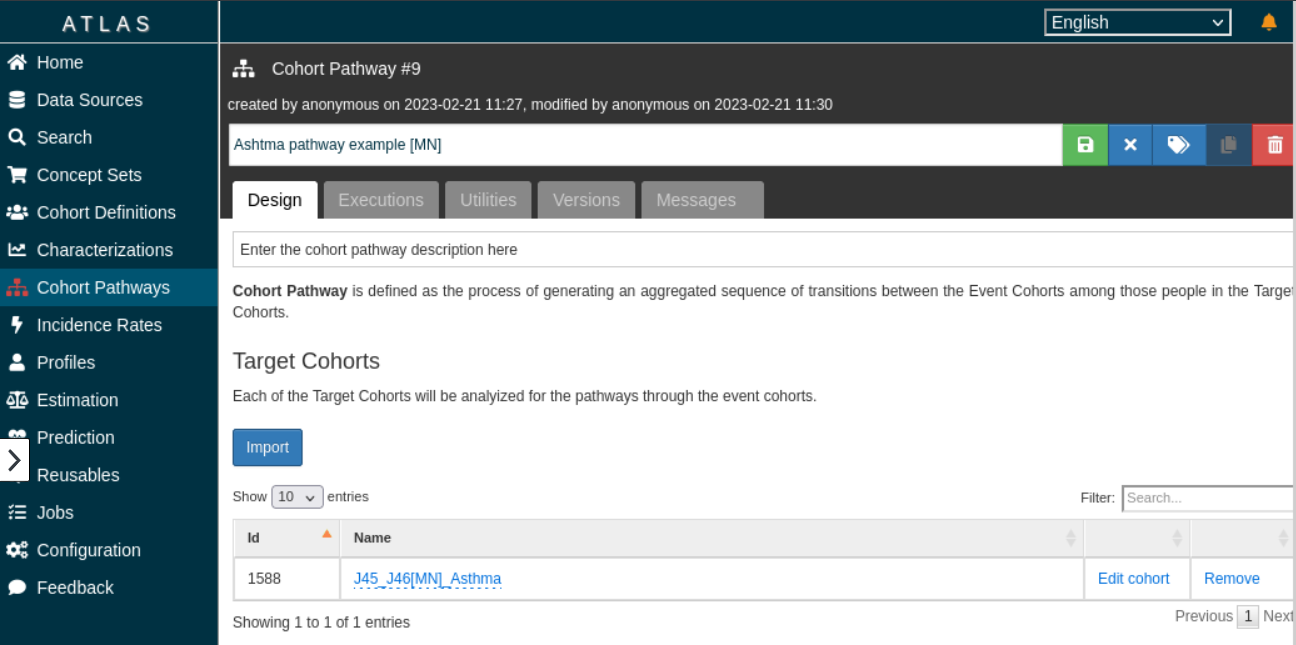
* Click the Target Cohorts <img src="/files/DDUFGZmFFgQlwdTTAcok" alt="" data-size="line">button to select the **Target Cohort(s).** A Target Cohort is the group of patients being investigated in the pathways of events.
<figure><img src="/files/eJKxUVzUeryorrCxQblS" alt=""><figcaption></figcaption></figure>

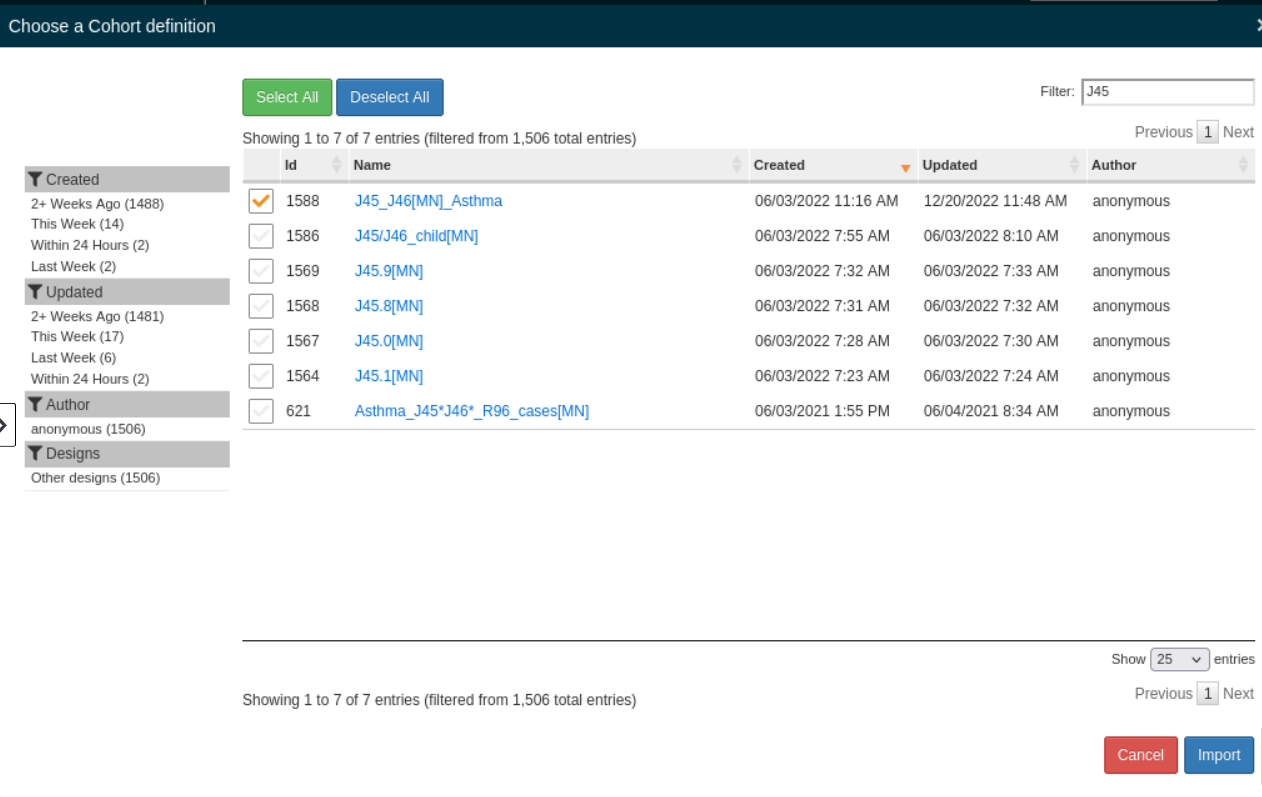
* Select your Target Cohort(s) from the provided list and click <img src="/files/DDUFGZmFFgQlwdTTAcok" alt="" data-size="line"> button at the bottom of the page. Use the *Filter* option to search for your cohort. Once you have selected the Target Cohort(s) they will appear in a table (see above).

In this example, we have selected the *J45\_J46\[MN]\_Asthma* Target Cohort:
<figure><img src="/files/1f8pzmryeG9ZKxl23Azr" alt=""><figcaption></figcaption></figure>

* Click the Event Cohorts <img src="/files/DDUFGZmFFgQlwdTTAcok" alt="" data-size="line">button to select the **Event Cohort(s)** from the provided list. An Event Cohort defines the steps in this pathway and is usually defined using treatments, medicines, or comorbidities.

In this example, we have selected four Event Cohorts that are displayed in following table:

<figure><img src="/files/lqe3nvYklNQEu6vxjDPy" alt=""><figcaption></figcaption></figure>

### Define Pathway Analysis Settings

Next, define the pathway analysis settings:

* **Collapse Days:** the range of days for events to be assigned the earliest date in the range to reduce pathway variation during analysis.
* **Minimum cell count:** the smallest number of individuals in the Target Cohort for the event to be included in the pathway.

{% hint style="warning" %}
If you wish to export results from the FinnGen Sandbox the number of reported individuals must be ≥ 5.
{% endhint %}

* **Maximum path length:** the maximum of steps in a pathway in the Sunburst Plot.
* **Allow repeats:** define if the same event (or event combination) is allowed to appear multiple times in the pathway.

<figure><img src="/files/5KTmC8nDoqiYeRZqROA3" alt=""><figcaption></figcaption></figure>

### Save the Cohort Pathway

* Save the Cohort Pathway by clicking the **Save** button on the right side of the Cohort Pathway name:

![](/files/pFpQCCTWuFALvToEAsEj)

### Run the Pathway Analysis

Now we are ready to run the Pathway analysis.

* Click the **Executions** tab.
* Click the blue **Generate** button (shown after having been clicked below) for the FinnGen data release of your choice.
* The red **Cancel** button is shown while the Pathway analysis is running.

<figure><img src="/files/aIvz5J4sOLpqXoD9KcmR" alt=""><figcaption></figcaption></figure>

Once the Pathway analysis is completed:

* Click the **All executions** button and find your analysis run
* Click the **View reports** link

<figure><img src="/files/3q72FSY7Y2QIHFPdH5Kl" alt=""><figcaption></figcaption></figure>

### Pathway Analysis Results

{% hint style="warning" %}
People in the Target Cohort who are not in any of the Event Cohorts are excluded from the Pathway Analysis.
{% endhint %}

* The results are visualized using a Sunburst Plot and can be downloaded in a tabular format by clicking the **Tabular** button.

<figure><img src="/files/32a6hTgiRM3arbGY0VQy" alt=""><figcaption></figcaption></figure>

#### **Visualisation of the results**

* **The left panel shows** Target Cohort details including the percentage of persons included in the Pathway Analysis. It also explains the Event Cohort (event) colors used in the Sunburst Plot.
* **The middle panel shows** the Sunburst Plot with each circle in the plot describing one step in the Pathway Analysis. Different events are shown using different colors and in correct proportions. The innermost circle layer shows the people in the Target Cohort who are included in the first initial event. The second circle layer shows the second event in the pathway that happened after the first initial event. The third circle layer shows the third event, and so on. Two or more colors within a layer indicate simultaneous events. The order of the colors is fixed and does not indicate the chronological order of simultaneous events. The end of the pathway is indicated in grey.
* **The right panel shows** details of a path after a point has been clicked in the Sunburst Plot.

### Further information

Atlas documentation:

* [The Book of OHDSI, Chapter 11.9 Cohort Pathways in ATLAS](https://ohdsi.github.io/TheBookOfOhdsi/Characterization.html#cohort-pathways-in-atlas)


---

# Agent Instructions: Querying This Documentation

If you need additional information that is not directly available in this page, you can query the documentation dynamically by asking a question.

Perform an HTTP GET request on the current page URL with the `ask` query parameter:

```
GET https://docs.finngen.fi/working-in-the-sandbox/which-tools-are-available/atlas/detailed-guide/cohort-pathways.md?ask=<question>
```

The question should be specific, self-contained, and written in natural language.
The response will contain a direct answer to the question and relevant excerpts and sources from the documentation.

Use this mechanism when the answer is not explicitly present in the current page, you need clarification or additional context, or you want to retrieve related documentation sections.