> For the complete documentation index, see [llms.txt](https://docs.finngen.fi/llms.txt). Markdown versions of documentation pages are available by appending `.md` to page URLs; this page is available as [Markdown](https://docs.finngen.fi/working-in-the-sandbox/which-tools-are-available/atlas/detailed-guide/how-to-define-a-cohort-in-atlas/concept-sets/find-mapped-equivalents-for-standard-and-non-standard-codes-in-atlas.md).
# Create Concept Sets using equivalent standard and non-standard codes
In this tutorial, we will show you:
* How to create a new Concept set that uses standard codes equivalent to original non-standard codes
* How to create a new Concept set that uses non-standard codes equivalent to original standard codes
### Find equivalent non-standard codes for standard codes
We start by having a Concept Set defined using standard codes. In the example below, we have defined an Asthma Concept Set with nine standard codes. **Our goal is to create an equivalent concept that uses non-standard codes**.
* Go to the **Included Source Codes** page.
* The **Vocabulary** filter on the left shows, SNOMED, ICD10fi, ICD9fi, and ICPC codes. SNOMED codes are standard codes, while the other codes are non-standard codes.
{% hint style="info" %}
The **Included Source Codes** page shows all codes in blue regardless if they are standard, non-standard or classification codes.
{% endhint %}
* Select all ICD10fi and ICD9fi non-standard codes using the **Id** column checkbox.
* Scroll to the bottom of the page and click the **Add To Concept Set** button.
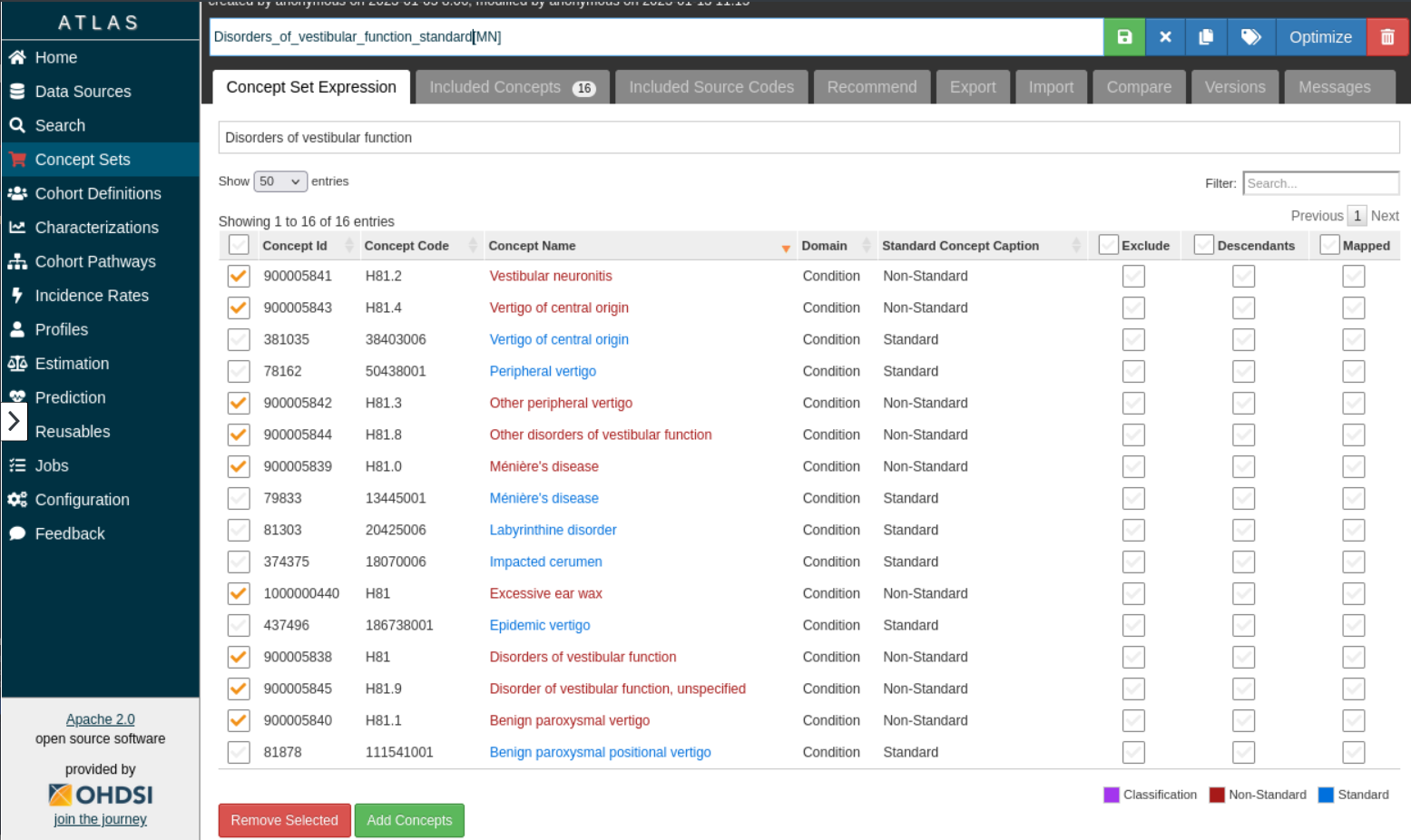
* Go to the **Concept Set Expression** page. Non-standard codes (in red) are now also listed (see screenshot below).
{% hint style="info" %}
The red shopping cart icon on the left of the **Concept Set** indicates that the Concept Set has been changed but not saved.
{% endhint %}
* Copy the Concept Set using the button.
* Rename the Concept Set.
* Select all standard codes (shown in blue) using the **Id** column checkbox.
* Scroll down the page, and click the **Remove Selected** button.
* Save the Concept Set.

* **The new Concept Set is now ready. It contains non-standard codes that are the mapped equivalents for the standard SNOMED codes used to define the original Concept Set.**
{% hint style="info" %}
Mapped equivalent codes can also be selected using the **Mapped** checkbox option on the **Included Concepts** page.
{% endhint %}
* On the **Included Concepts** page, after selecting standard codes, select the **Mapped** checkbox and click the **Add To Concept Set** button. This will add all equivalent non-standard codes to the Concept Set.
### Find equivalent standard codes for non-standard codes
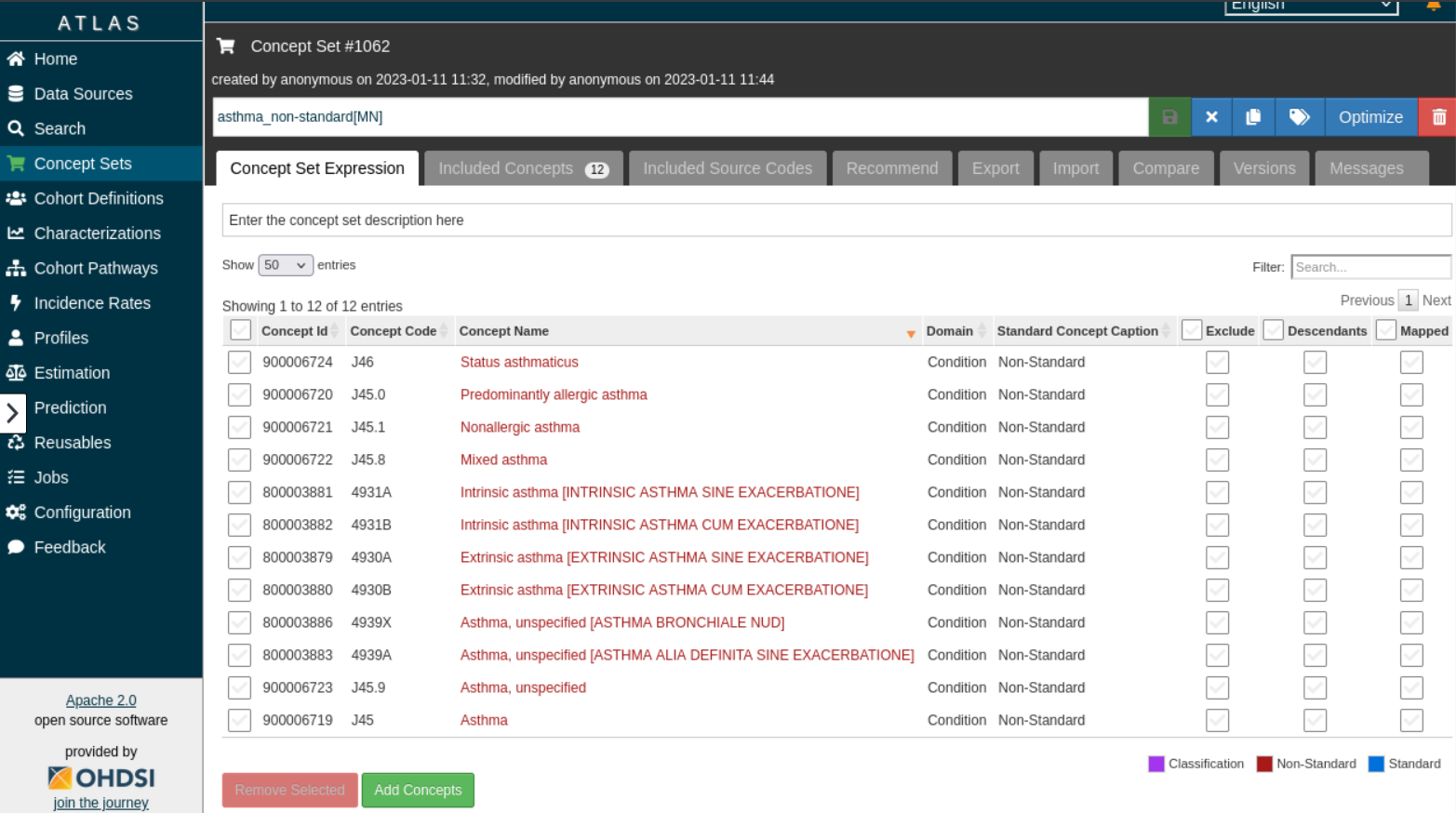
We start by having a Concept Set defined using non-standard codes. In the example below, we have defined a Concept Set with nine non-standard codes. **Our goal is to create an equivalent concept that uses standard codes**.
* Click a **Concept Name** to show **Details** of the code. In the example below, you see that the code is **Non-Standard:**
* Go to the **Related Concepts** tab. There you can see the mapped standard (in blue) and non-standard (in red) codes.
* Select the standard code using the **Id** column check box.
* Scroll to the bottom of the page and click the **Add to Concept Set** button.
* Go to the **Concept Sets** page to see that the standard code (shown in blue) has been included in the Concept Set. You can add other standard codes in the same way.
* Copy the Concept Set using the button.
* Rename the Concept Set.
* Select all non-standard codes (in red).
* Scroll to the bottom of the page and click the **Remove Selected** button.
* Save the new Concept Set.
**The new Concept Set is now ready. It contains standard codes that are the mapped equivalents for the non-standard used to define the original Concept Set.**
.png?alt=media)
.png?alt=media)
.png?alt=media)
 button.
* Rename the Concept Set.
* Select all standard codes (shown in blue) using the **Id** column checkbox.
* Scroll down the page, and click the **Remove Selected** button.
* Save the Concept Set.
button.
* Rename the Concept Set.
* Select all standard codes (shown in blue) using the **Id** column checkbox.
* Scroll down the page, and click the **Remove Selected** button.
* Save the Concept Set.
.png?alt=media)
.png?alt=media)
.png?alt=media)
.png?alt=media)
.png?alt=media)
.png?alt=media)