> For the complete documentation index, see [llms.txt](https://docs.finngen.fi/llms.txt). Markdown versions of documentation pages are available by appending `.md` to page URLs; this page is available as [Markdown](https://docs.finngen.fi/working-in-the-sandbox/which-tools-are-available/lifetrack.md).
# LifeTrack
LifeTrack is a GUI tool to visualize all health register data for a person in a single view. A typical use case for LifeTrack is to explore an interesting cohort member for example to explore medical history of rare variant cases or cohort outliers.
See a tutorial on how to use LifeTrack from the [FinnGen Data Users' Meeting on 28th Feb 2023](https://www.finngen.fi/en/members/recordings/finngen-data-users-meeting-28th-feb-2023).
See also a [presentation of New FinGen tools and their application to example diseases from User's meeting 28th March 2023 recording ](https://www.finngen.fi/en/members/recordings/finngen-data-users-meeting-28th-march-2023)(at 25min 23sec) including usage of LifeTrack tool.
### Design of the data presented in the LifeTrack
LifeTrack reads the data from [Detailed Longitudinal Data](/finngen-data-specifics/red-library-data-individual-level-data/what-phenotype-files-are-available-in-sandbox-1/detailed-longitudinal-data.md) through the BigQuery database and is complemented with the [Service sector data](/finngen-data-specifics/red-library-data-individual-level-data/what-phenotype-files-are-available-in-sandbox-1/service-sector-data.md) and English translations of the medical codes.
The LifeTrack shows a person's health register data grouped into [five classification groups](#viewing-all-health-register-data-for-a-person): Procedures, Conclusions, Diagnoses, Medications, and Unclassified. In each classification group, register entries are presented as a dot plot.
Design of the data presented in the FifeTrack
### Input file format
The LifeTrack works well together with [Cohort Operations](/working-in-the-sandbox/which-tools-are-available/cohort-operations-tool-co.md), [Trajectory Visualization Tool](/working-in-the-sandbox/which-tools-are-available/trajectory-visualization-tool-tvt.md), and [Genotype Browser](/working-in-the-sandbox/which-tools-are-available/genotype-browser.md). The output file from these programs can be read directly into the LifeTrack. LifeTrack reads text files with the following formatting. To view [Atlas ](/working-in-the-sandbox/which-tools-are-available/atlas.md)cohorts in LifeTrack, [you should first download the cohort through Cohort Operations tool.](/working-in-the-sandbox/which-tools-are-available/cohort-operations-tool-co/export-finngen-ids-using-co.md)
The input file for the LifeTrack is a tab-separated text file with one mandatory column, FINNGENID. There might others, such as SEX in the example below – they are just ignored.
| FINNGENID | SEX |
| ---------- | ------ |
| FG00000001 | male |
| FG00000002 | male |
| FG00000003 | female |
| FG00000004 | female |
| FG00000005 | male |
### Running LifeTrack
Open the LifeTrack from the `Applications -> FinnGen -> LifeTrack` in Sandbox.
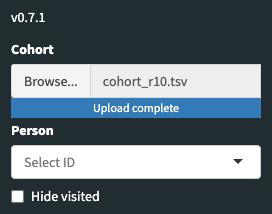
Upload cohort to the LifeTrack. Click `Browse...` and select a cohort from the opening window. LifeTrack can [read output files from other FinnGen tools directly and from text files](#input-file-format). After uploading is completed select a person's ID from the drop-down menu to view medical recordings.
You may hide the sidebar from the .png?alt=media) icon.
.png?alt=media)
### Viewing all health register data for a person
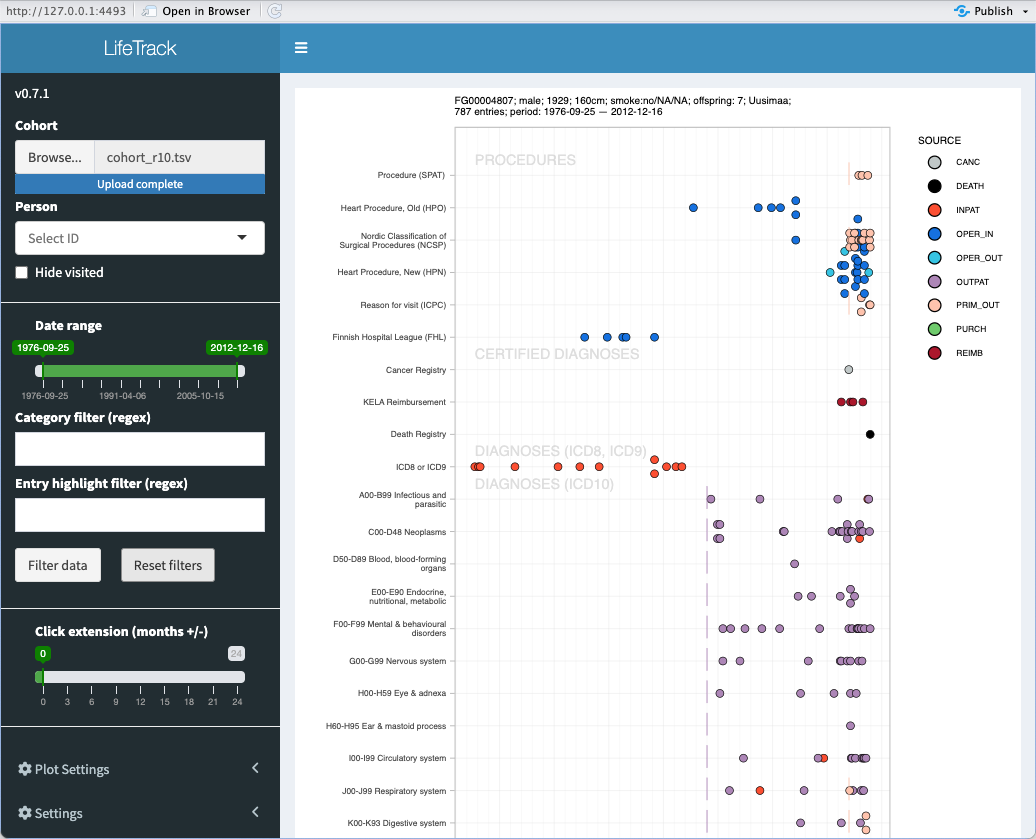
On the top of the page person's ID, gender, year of birth, height, smoking status, home region/province, and the number of entries in the data are shown. The grid area shows register entries as a dot plot. Each dot is a register entry. Multiple entries at the same location are shown on top of each other. Time is presented on the x-axis and classification is on the y-axis.
Register entries are grouped into six categories: Procedures, Certified Diagnoses, Diagnoses (ICD8 and ICD9), Diagnoses (ICD10), Medications, and Unclassifieds. Diagnose category contain[ ICD10 codes](/finngen-data-specifics/finnish-health-registers-and-medical-coding/international-and-finnish-health-code-sets.md) while medication category contains [ATC code](/finngen-data-specifics/finnish-health-registers-and-medical-coding/international-and-finnish-health-code-sets.md) top-level items. Procedures category includes multiple vocabularies like [SPAT, ](/finngen-data-specifics/finnish-health-registers-and-medical-coding/more-information-on-health-code-sets.md)NCSP (also known as [Nomesco](/finngen-data-specifics/finnish-health-registers-and-medical-coding/more-information-on-health-code-sets.md))[, and ICPC](/finngen-data-specifics/finnish-health-registers-and-medical-coding/more-information-on-health-code-sets.md). The Certified Diagnoses category contains the most reliable diagnoses coming from [the cancer registry, the KELA reimbursement registry, or the death registry](/finngen-data-specifics/red-library-data-individual-level-data/what-phenotype-files-are-available-in-sandbox-1/detailed-longitudinal-data.md). Unclassifieds category includes items that can't be mapped. Usually, these are [VNR codes](/finngen-data-specifics/finnish-health-registers-and-medical-coding/international-and-finnish-health-code-sets.md) not having equivalent in the standard [ATC code](/finngen-data-specifics/finnish-health-registers-and-medical-coding/international-and-finnish-health-code-sets.md).
The entries are color-coded based on the register where entries are recorded (see key at right). The SOURCE registers are described in the [Detailed Longitudinal Data](/finngen-data-specifics/red-library-data-individual-level-data/what-phenotype-files-are-available-in-sandbox-1/detailed-longitudinal-data.md) section.
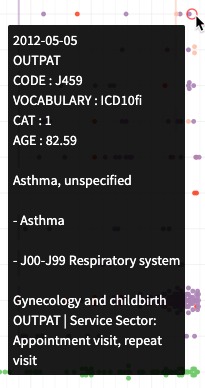
Hovering the mouse over a plot will show details about the selected data points.
### Filter the data
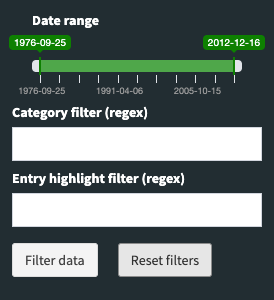
To view only part of the patient's data use the filtering options in the left side menu. The data can be filtered according to the data range (x-axis) and by regular expressions that match the Category (y-axis) or the data point's code and translation (Entry), including service sector description.
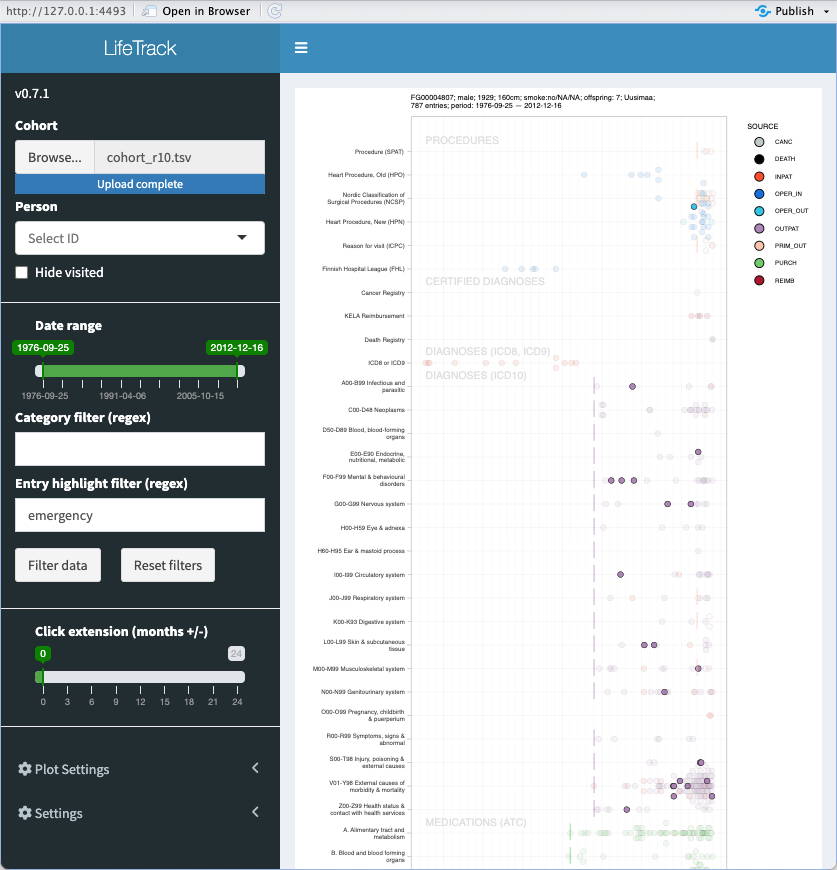
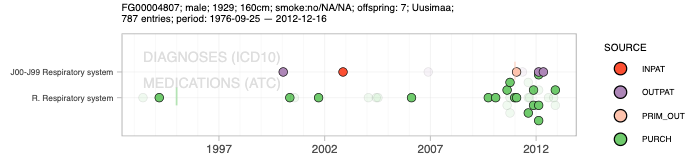
If you'd like to highlight events related to emergency services, you could write "emergency" into "Entry highlight filter", and you would get the following result where the non-matching events are faded into the background.
If you want to constrain the visible date range, you can set it by dragging the beginning and end of the green bar.
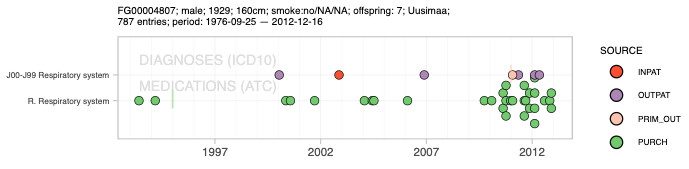
Suppose you are interested to see diagnoses and drug purchases related to the respiratory system. If you enter the word "respiratory" into `Category filter`, you get the following view.
Since the `Category` and `Entry` are matched both to code and translation, you could also enter "^R03|^J4" into the `Entry` field and get "chronic lower respiratory system diseases (J4)" and "drugs for obstructive airway diseases (R03)" highlighted. The caret symbol "^" forces the regular expression to match only to the beginning of the entry.
To conduct the search click `Filter data`. To clear filtering settings click `Reset filters`. When you load another person's data, the filter settings are not reset, except the date range (as it is person-specific).
### Plot Settings
LifeTrack tries to adapt the dot plot settings in such a way that the result is readable. If it fails, then you can use the Plot Settings menu to alter the settings.
Adjust the plot settings by dragging the green bars in the Plot Settings menu. You may customize the plot height, dot size, stack ratio, and bin width to improve the readability of the visualization. To fit data into the screen you may also restrict the data using the [filtering option](#filter-the-data).
.png?alt=media)
### Viewing details of entries from the data
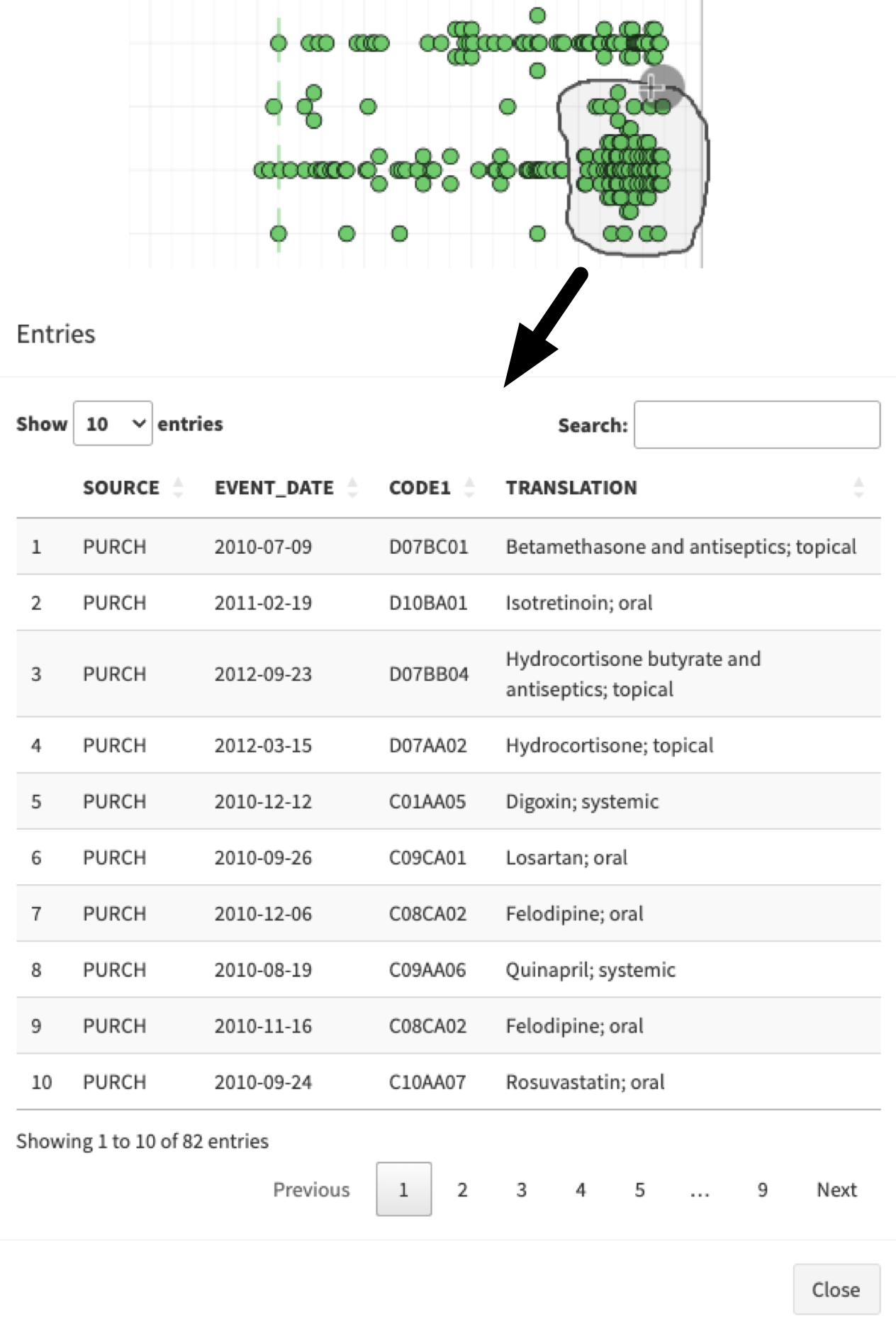
Hovering the mouse over a plot will show details about the selected data points. If you are hovering over a date that has multiple entries, they will be highlighted as well. To get even more details at once use the lasso tool to select several points. From the top right corner click lasso select .png?alt=media) and draw a circle around the entries of your choice. Details for the selected points will appear in the popup table view. You can filter the table by entering a string into the Search field, and you can also reorder the table by clicking one of the column names.
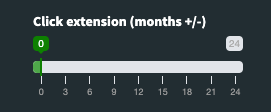
Selecting a single point will also open the table view for the point, essentially showing the same information as the mouse hover operation. There is a slider "Click extension" that will expand the selection with events for the number of selected months, both before and after the selected event. With this vertical selection feature, you can easily check what happened around your event of interest.
.png?alt=media)
.png?alt=media)