> For the complete documentation index, see [llms.txt](https://docs.finngen.fi/llms.txt). Markdown versions of documentation pages are available by appending `.md` to page URLs; this page is available as [Markdown](https://docs.finngen.fi/working-in-the-sandbox/working-with-genotype-data/tools-for-geno-pheno-explorations/example-transferring-data-from-genotype-browser-to-lifetrack.md).
# Example: transferring data from Genotype Browser to LifeTrack
With Genotype Browser you can select individuals based on their genotypes and by importing them to the LifeTrack you can investigate their medical history.
In this example we are tasked with finding all the females that are homozygous for variant rs144313315 (chr14:55424219:T:A), which can be done using [Genotype Browser](/working-in-the-sandbox/which-tools-are-available/genotype-browser.md). Afterwards, we can inspect this group of people in more detail using [LifeTrack](/working-in-the-sandbox/which-tools-are-available/lifetrack.md).
#### Step 1.
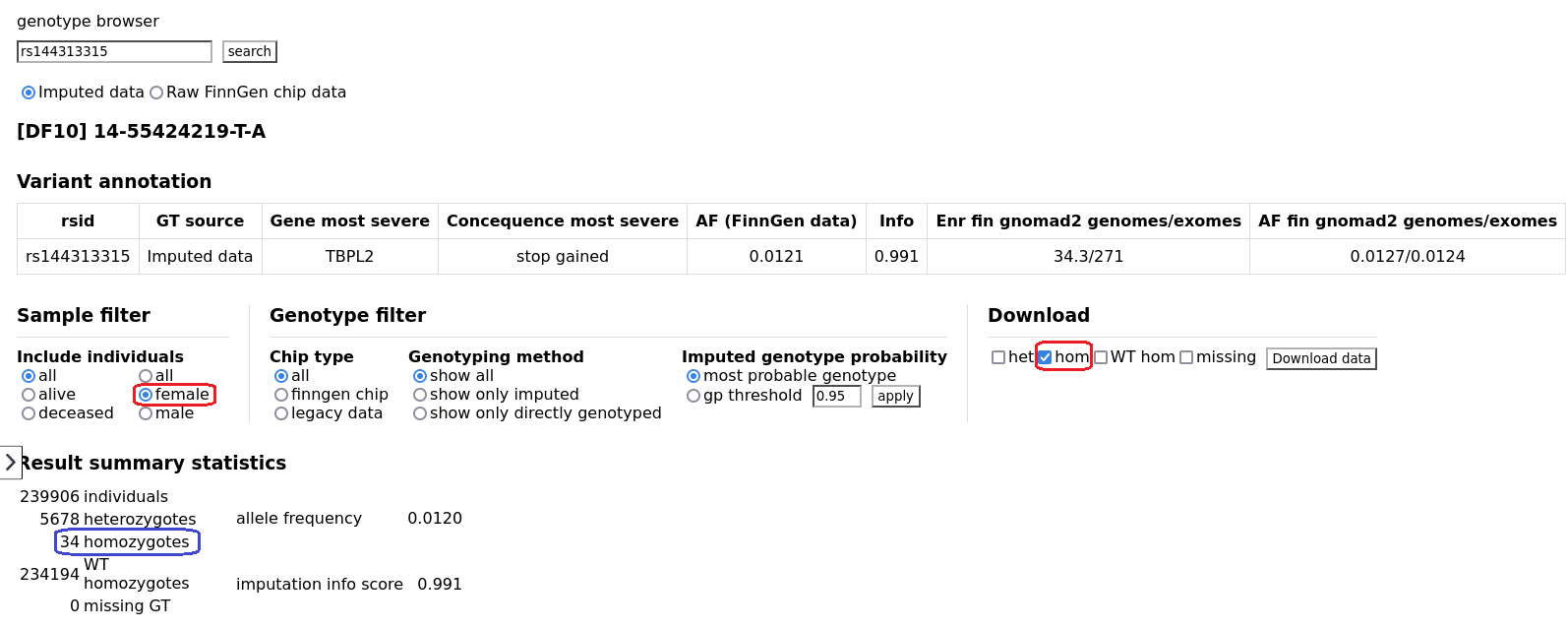
Open Genotype Browser and search for the variant we want to inspect. You can either enter the variant (in this case rs144313315) or the genomic location (chr14:55424219:T:A).
#### Step 2.
We want to make a cohort using all homozygous females. This is why it is important to modify the settings before downloading any data. From **Include individuals**, select **Female** and from **Download** only select **hom** (homozygous for the variant we are interested in).
By applying these settings we can see that the N of homozygous females for our variant is 34 (highlighted by the blue box).
#### Step 3.
Press **Download data** to download the cohort and name it accordingly. The most important aspect of the name is that you are able to find it later.
#### Step 4.
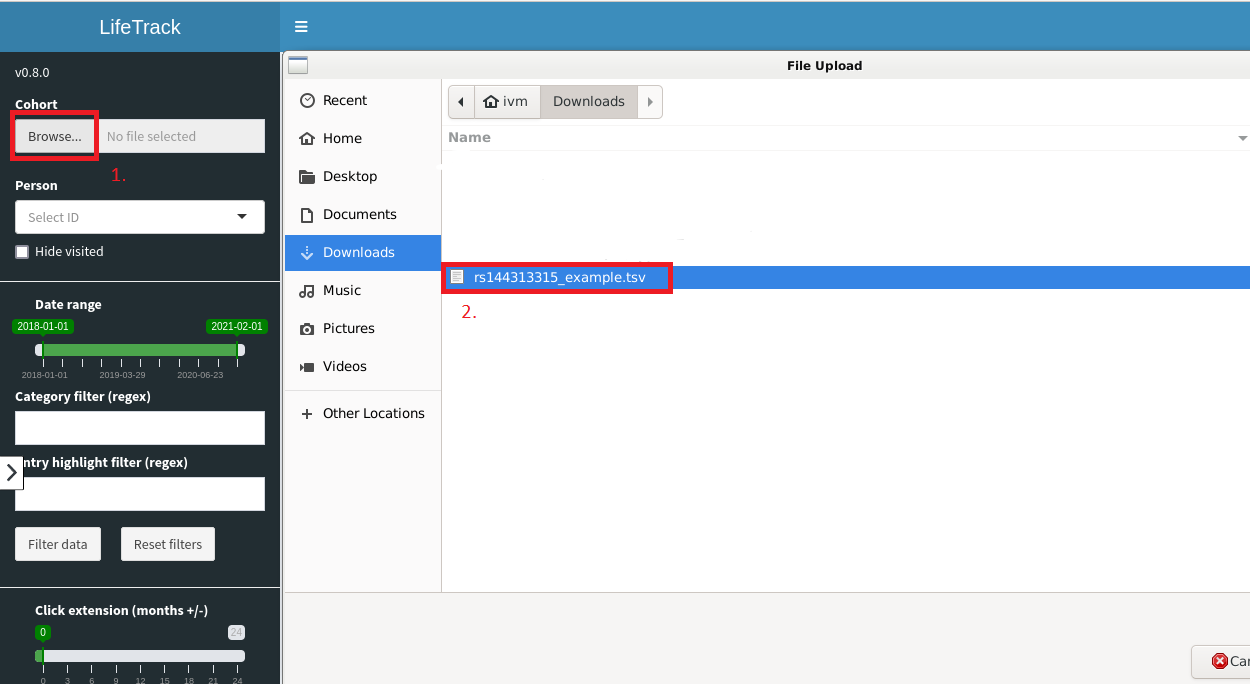
Open **LifeTrack,** click `Browse...` and you should see your downloaded cohort as a `.tsv` file. Select your file and click `Open`.
#### Step 5.
LifeTrack is ready to inspect the cohort after there reads **Upload complete** below the `Browse...` button. Now you can start analyzing the data with the instructions on the [LifeTrack page](/working-in-the-sandbox/which-tools-are-available/lifetrack.md).